
Tech Tips: Ben Schorr shares three of his favorite tips for saving time in Microsoft Outlook.
The post Outlook Productivity Tips for Lawyers: 3 Quick Steps to Boost Productivity appeared first on Articles, Tips and Tech for Law Firms and Lawyers.
There are few apps attorneys spend more time in than Outlook, so every little trick you can find to save time and be more efficient pays off. Here are three of Ben Schorr’s favorite Outlook productivity tips for lawyers.

Table of contents
Mastering the tools you use almost every hour of the day, like Outlook, Word and your case management system, can make a big difference in your law practice. Here are three of my favorite tips to boost productivity in Outlook.
Sidebar: I know there’s classic Outlook and new Outlook, but very few attorneys I meet are using new Outlook yet, so these tips are primarily for classic Outlook.
1. Quick Steps for Flagging Email Follow-Ups
Quick Steps are a way to package multiple actions (like move, categorize, or delete a message) into a single action you can activate with a click or keystroke. The mistake most people seem to make with them is creating a Quick Step to do something that’s just one step to begin with. A Quick Step that just deletes a message, for example, isn’t really very useful (you could just press Delete on your keyboard).
Here’s an example that I find very useful — in fact, I use it almost every day.
When I have an email message awaiting a response, I like to tag it as a message I’m waiting on and flag it for follow-up. This way, I get a reminder if I haven’t heard anything by a certain time.
Here’s how I set up the new Quick Step.
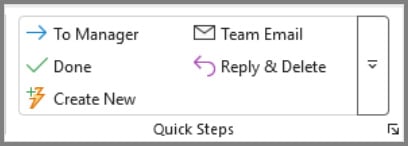
To start with, I’ll find Quick Steps on the Home tab of the Ribbon in Outlook and select Create New to create a new Quick Step.
In the Edit Quick Step dialog that appears, I’ll name my Quick Step “Waiting” and add my first action to categorize the message. Since I’ve already created an Outlook Category called “Waiting,” I’ll select Categorize message from the list and choose that “Waiting” category.
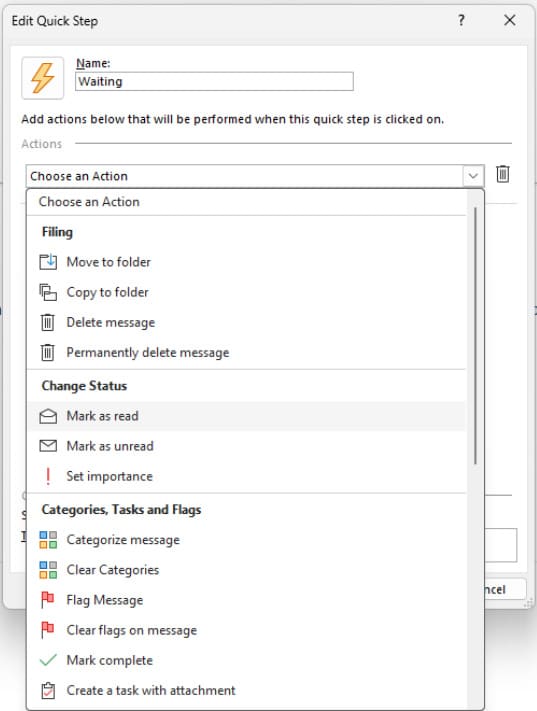
(Note: If you already have several Quick Steps, you might not see Create New in the menu. Just click the large Quick Steps button on the right side of the gallery to expose it.)
Next, I want to add a second action that adds a flag to the message for follow-up. From the menu, I choose Flag Message for that action and, under Choose flag, I’m going to select Next Week.
Finally, I want to assign a keyboard shortcut to my Quick Step so that I can trigger it right from the keyboard without needing to use my mouse to find the button. I’ll select the Choose a shortcut dropdown and select CTRL+SHIFT+1. Then I’ll click Finish.
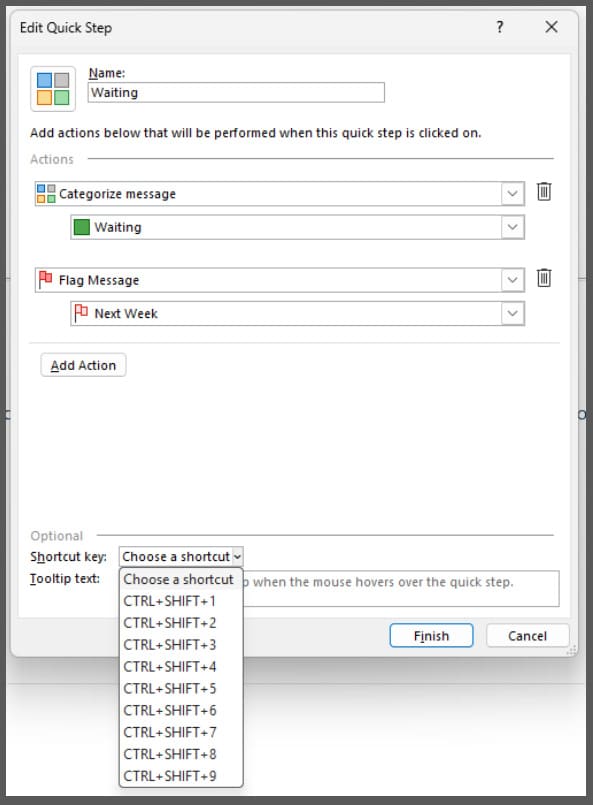
Now, whenever I’m waiting for a response to a message in any folder, including Sent Items, I can just press CTRL+SHIFT+1. That message will get categorized as “Waiting,” it’ll get a little green flag, and it will be added to my To Do list for next Friday. Next Friday, I can decide if I need to follow up on that item or not.
2. AutoArchive for Deleted Items
Most of us aren’t good about cleaning out our Deleted Items folder, and those messages can really pile up. Luckily, there’s an Outlook feature that can help:
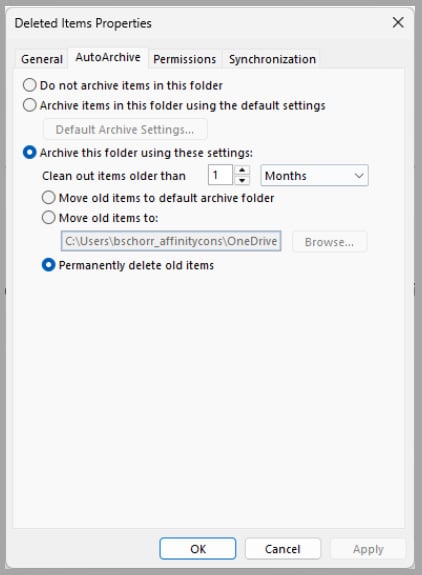
AutoArchive. Right-click the Deleted Items folder and choose Properties, then go to the AutoArchive tab of the dialog that appears.
The default is Do not archive items in this folder. Let’s change that! Select Archive this folder using these settings.
The first thing to choose is Clean out items older than. You probably want your Deleted Items for at least a few days, in case you accidentally delete something you want to recover, but pick a time frame that works for you. (I set mine to 1 month).
Next, in the radio buttons, select Permanently delete old items. And select OK to finish.
From then on, each time AutoArchive runs, items that have been in the Deleted Items folder longer than that period of time will be automatically purged.
Important: AutoArchive works off the Modified date, not the Received date, and the item will have been last modified when you deleted it. So, if you’re wondering why something hasn’t been purged yet, even though it looks old, that might be why.
Not Sure If/When AutoArchive Runs?
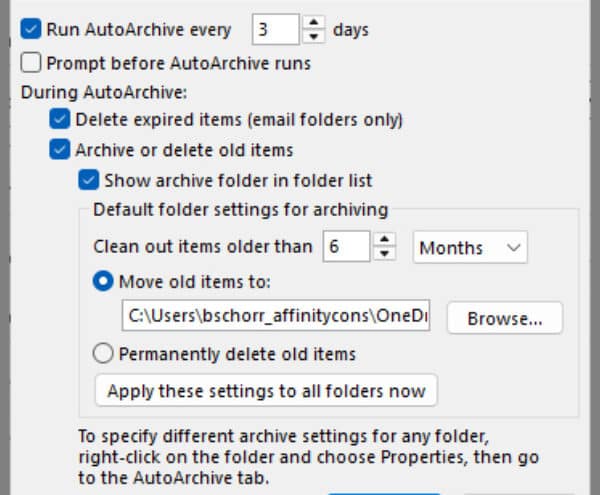
In Outlook, go to File > Options > Advanced > AutoArchive Settings. The very first item on the dialog says whether AutoArchive runs automatically and how often. I have mine set to run every three days. You can set it to whatever makes sense for you.
Want to trigger AutoArchive to run now?
Simple. In Outlook, go to File > Tools > Mailbox Cleanup > AutoArchive.
3. Open in New Window
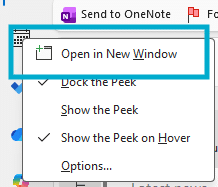
It’s not uncommon to want your inbox and calendar — or maybe two different email folders — open at the same time. To do that, open one of them, then right-click on the other and select Open in New Window.
Now you’ve got both of them open at once, so you can see them side by side and work with them more easily.
Yes, you could open a third or fourth window if you really wanted to.
By mastering these Outlook productivity tips for lawyers, you can spend less time managing email and more time on client work.
About Affinity Consulting Group
Affinity Consulting Group inspires, enables and empowers legal teams of all sizes to work smarter, from anywhere. The company’s holistic approach incorporates people, process and technology. Affinity’s passionate, well-connected industry experts work hand in hand with you to help you better understand and optimize your business — from software to growth strategy, and everything in between.
More Tech Tips From Affinity
- Cut Through the Clutter: How Copilot Helps You Get a Handle on Your Inbox
- Microsoft Copilot 2025: It’s Better 1 Year Later
- Legal AI Myths: Separating Fact from Fiction in Your Law Firm
- Law Firm Tech Cleanup: 6 Steps to Boost Efficiency and Cut Costs Now
- 15 Secure Collaboration Hacks Every Lawyer Should Know
- 25 Quick Tech Tips to Try in 2025
- 6 Ways Microsoft Word Speech-to-Text AI Can Help You Write Faster and Better
- PDF Bookmarks: The Secret to Quickly Creating User-Friendly Documents
- Never Forget to Follow Up: Using Outlook Email Reminders
- Templates to Create Model Documents That Save Your Law Firm Tons of Time
- Paperless Law Practice: How to Boost Efficiency, Cut Costs and Improve Client Satisfaction
- Take Your Practice to the Next Level With Document Automation Tools
- How to Master Page Numbers in MS Word

Microsoft Word for Legal Professionals
Want to work faster? For in-depth information and instructions on getting the most from Word, order Affinity Consulting Group’s hands-on digital manual “Microsoft Word for Legal Professionals.” Individual and site licenses are available for download in the Attorney at Work bookstore.
Office 365 Training Manuals for Lawyers
Check out Affinity Consulting Group’s “Excel for Legal Professionals,” “Outlook for Legal Professionals” and “PowerPoint for Legal Professionals.” Each manual zeros in on your practice’s needs with in-depth instructions from Affinity experts on getting the most out of your tech.
Licensed under the Unsplash+ License